Kling 4.0 AI Video Generator — Give Every Motion Direction
Build a scene around one clear movement. Use a written idea or visual reference, choose Flash or Pro, and guide the camera and action for social videos, edits, and campaign concepts.

In Flash, describe the opening and ending in text. Frame image uploads are unavailable in this mode.
Your videos
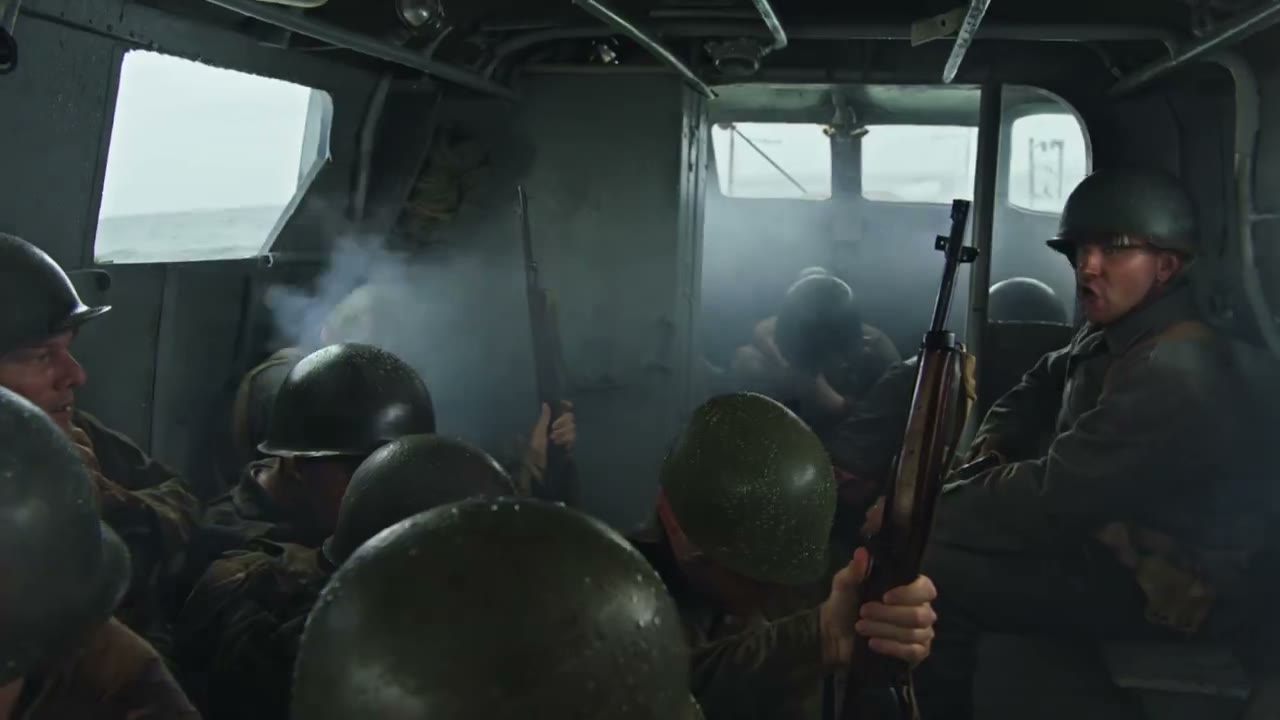
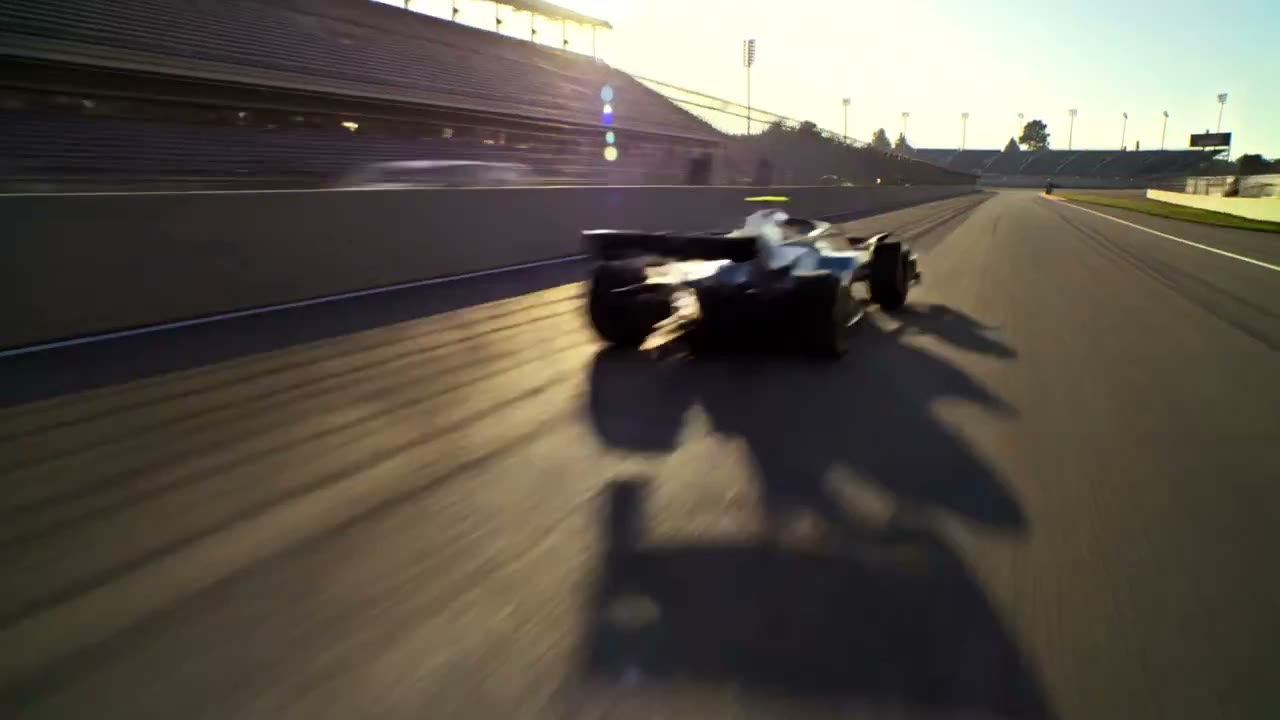

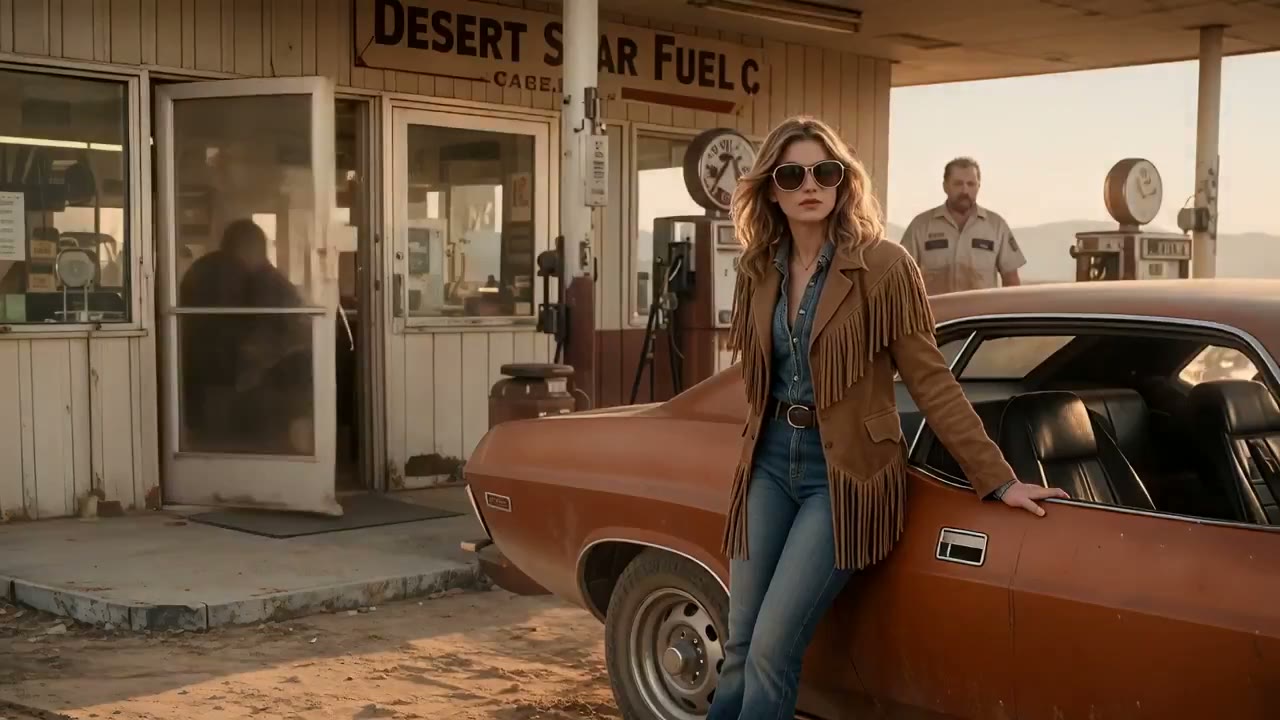


Kling 4.0 inspiration for your next video
Watch how a clear motion decision changes a product reveal, a street action, or a travel beat. Each clip starts with a subject the eye can follow.
Product ads with a clear focal point
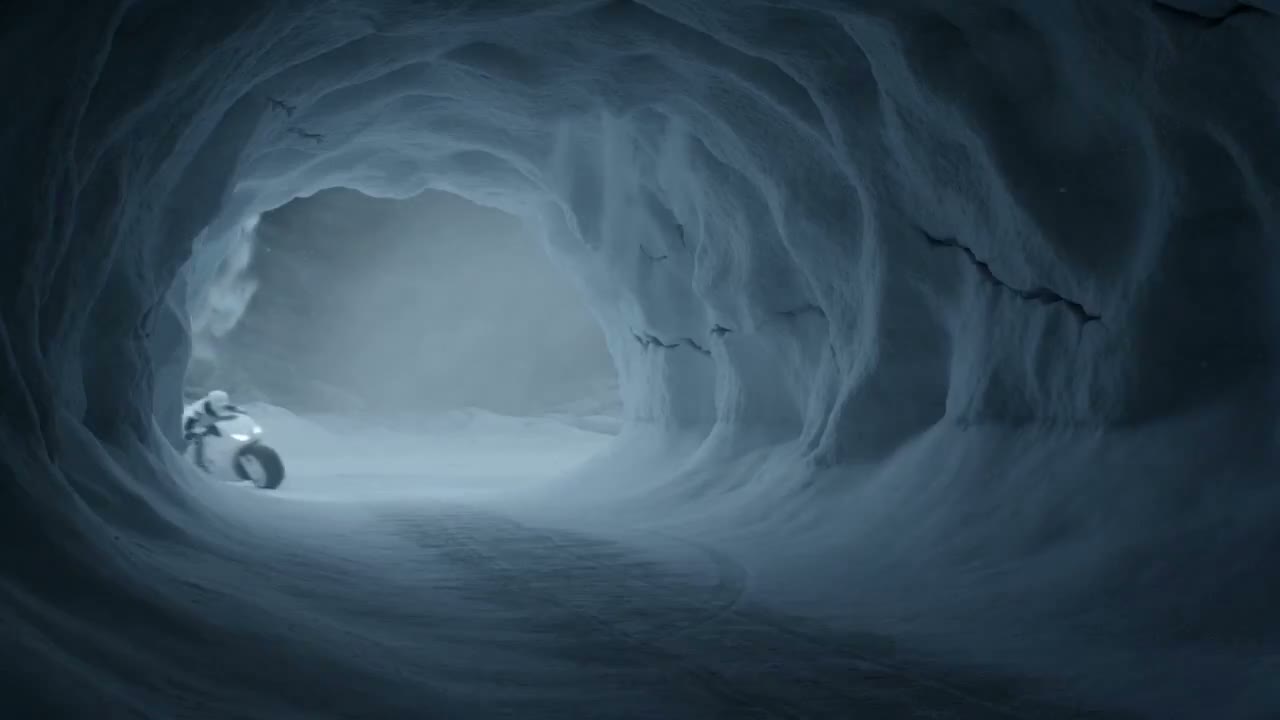
Reveal the object through a measured camera move. Shape the reveal so the camera draws attention to its edges and surface.
Character movement made for social video
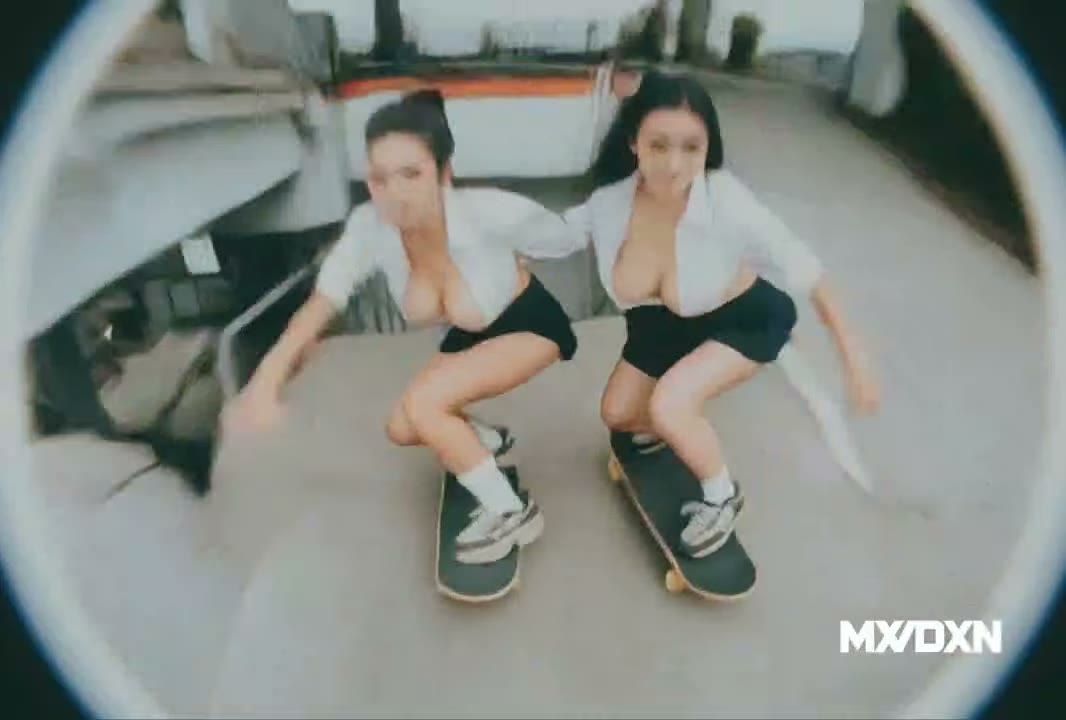
Let the skaters define the rhythm of the frame. Track the action without letting the street background compete for attention.
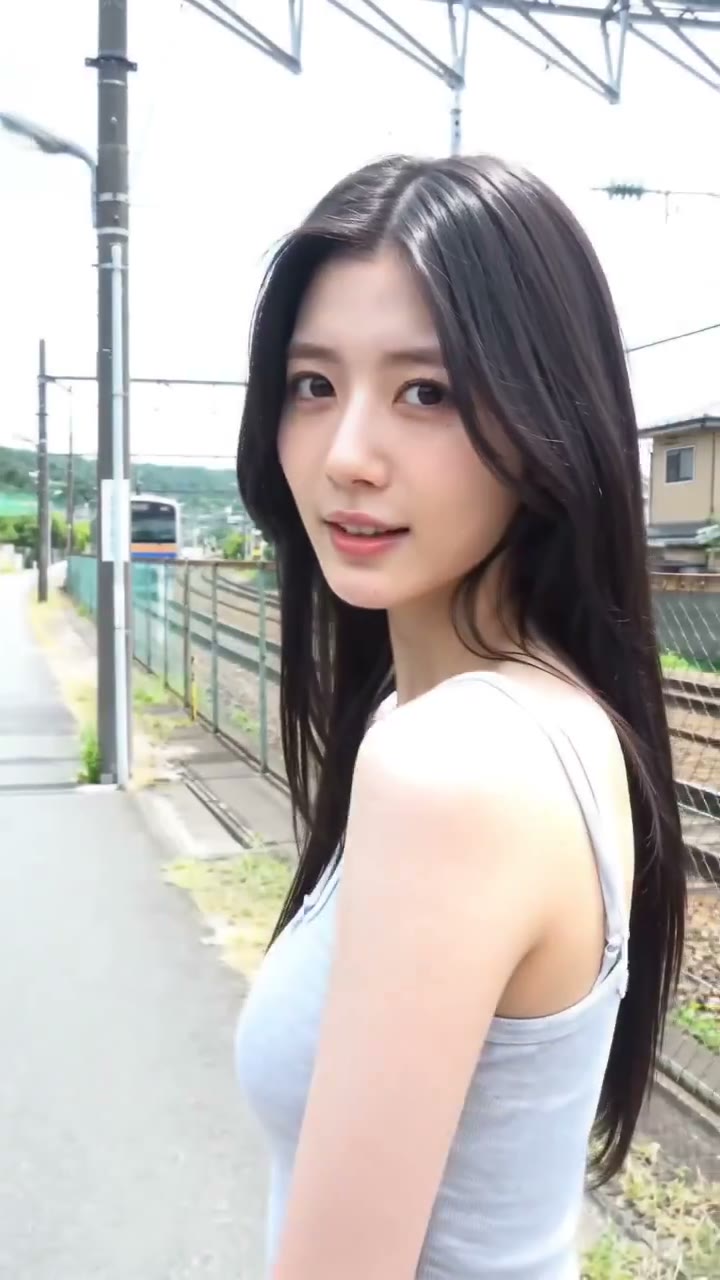
A travel moment with a human story
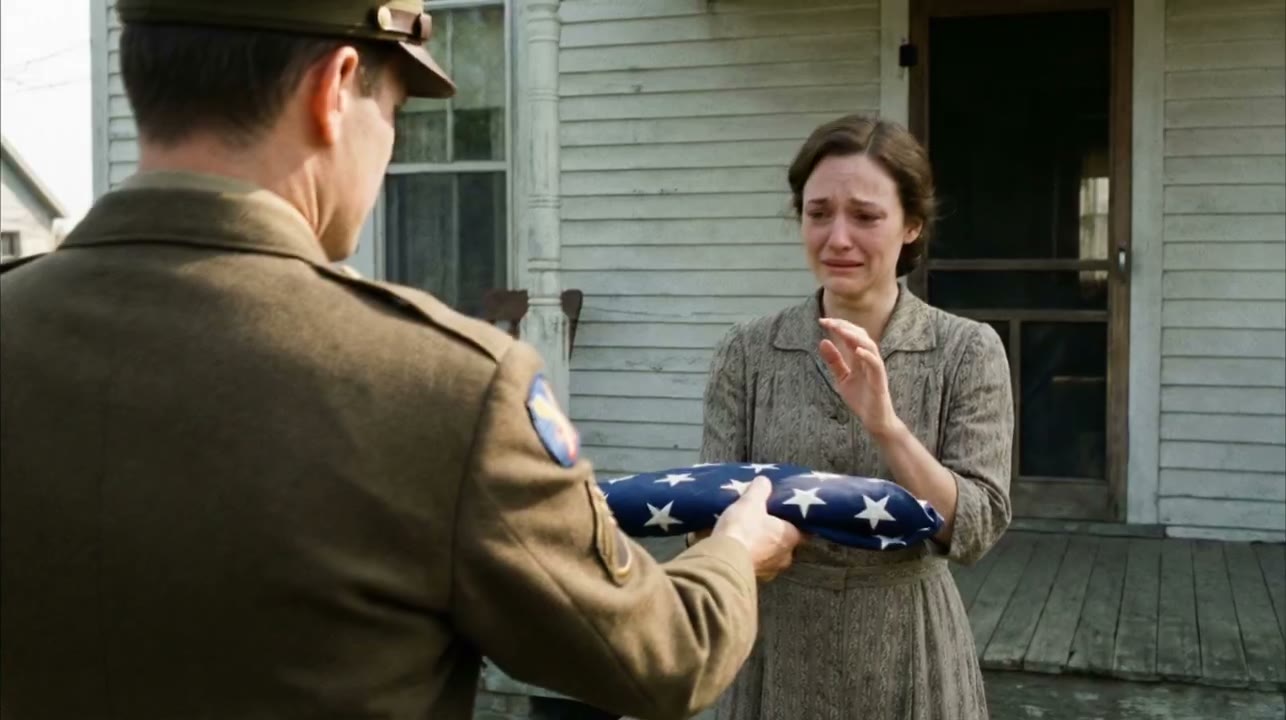
Use a change in gaze to turn a location into a scene. Time the turn and camera response so the final frame feels intentional.
Kling 4.0 tools for text, images, and clear motion
A Kling 4.0 AI video works best when the subject, action, and camera have separate jobs. Start from text or an image and direct the movement deliberately.
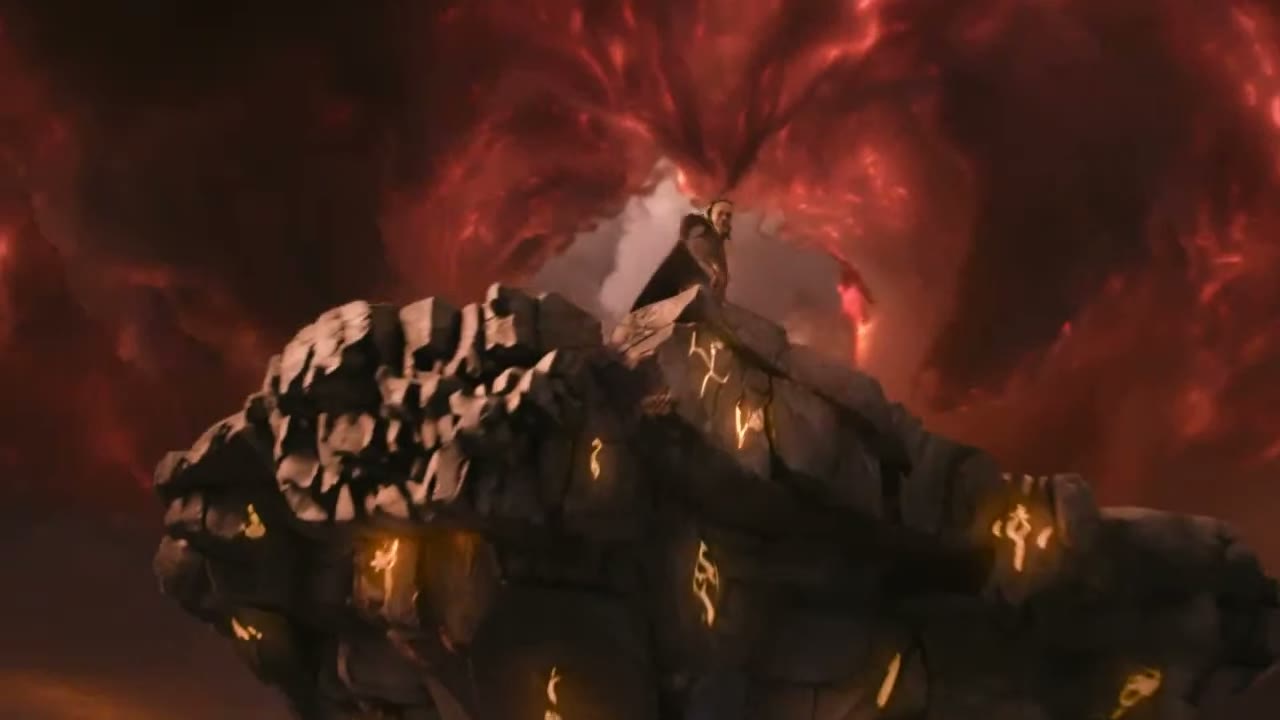
Kling 4.0 text to video
Write the action and camera as separate directions. Specify what the subject does and how the camera responds before adding style.
Kling 4.0 image to video
Use an image to establish the subject before it moves. Map one movement onto the reference without crowding the composition.
Kling 4.0 online video generator
Check the active mode and cost before committing to a shot. Choose controls that support your intended shot, then confirm the credits.
Why direct a Kling 4.0 AI video shot by shot?
Turn a brief into visible action
Direct attention to the intended subject first. Lead the viewer’s gaze through the action instead of splitting it across the frame.
Get more from an image you already have
Use the reference frame to hold a consistent visual line. Name the fixed details before the subject or camera begins to move.
Find the stronger version
Edit the motion decision rather than changing every part of the brief. A timing or framing adjustment reveals why one take feels stronger.
Plan a Kling 4.0 video in three focused steps
- 01
Choose your starting point
Begin with text or a reference image, then decide the subject’s action and the camera move before adding visual detail.
- 02
Direct the action
Set one clear action, then choose duration and framing to support it. Check the credits for the selected Flash or Pro setup before you create.
- 03
Create, review, and refine
Play the take with attention to timing and eye line. Download the strong version, or revise the camera path for another cut.
Get to know Kling 4.0
Use the guide to separate reported Kling 4.0 capabilities from the Flash and Pro controls available here, especially when planning references and key moments.
Kling 4.0 Preview and Kling 4.0 Flash Preview
Separate Kling 4.0 Preview and Flash Preview search terms from the reported mode details before you plan a shot around them.
Kling 4.0 references and keyframes
See how references and key moments can clarify the subject’s movement and the camera’s response across a sequence.
Kling 4.0 access, pricing, and API
Find current notes on access, API, and pricing in the guide, then check the live credit estimate for the shot you direct here.
Your Kling 4.0 video questions, answered
How do Flash and Pro work on the Kling 4.0 page?
Flash and Pro are the two creation choices on this page. Switch between them to inspect inputs, timing, and estimated credits before deciding how to direct the shot; the guide covers release reports.
Can I use an image on the Kling 4.0 page?
Yes. Upload a supported image when a character, product, or composition needs a visual reference. In the brief, state the movement and what must remain stable.
How do I write a Kling 4.0 AI video prompt?
Write the Kling 4.0 AI video prompt as a shot direction: name the subject, one action, and the camera response. If the scene feels busy, remove a competing movement.
How much does creating in the Kling 4.0 video generator cost?
Flash and Pro show a credit estimate for the settings active on this page. Read it alongside your balance before generating; it describes this workflow, not an official model price.
How do I download videos from the Kling 4.0 generator?
Your completed video appears in the output area for playback and download. Open the task again from history when you want to evaluate its timing against another take.
Explore more creative tools
Direct your next Kling 4.0 AI video scene
Give your Kling 4.0 AI video one strong motion idea. Create a take, study where the eye goes, and adjust the direction for the next cut.